
Creating a Talent Community starts with a saved search in the Talent Ecosystem.
Step one
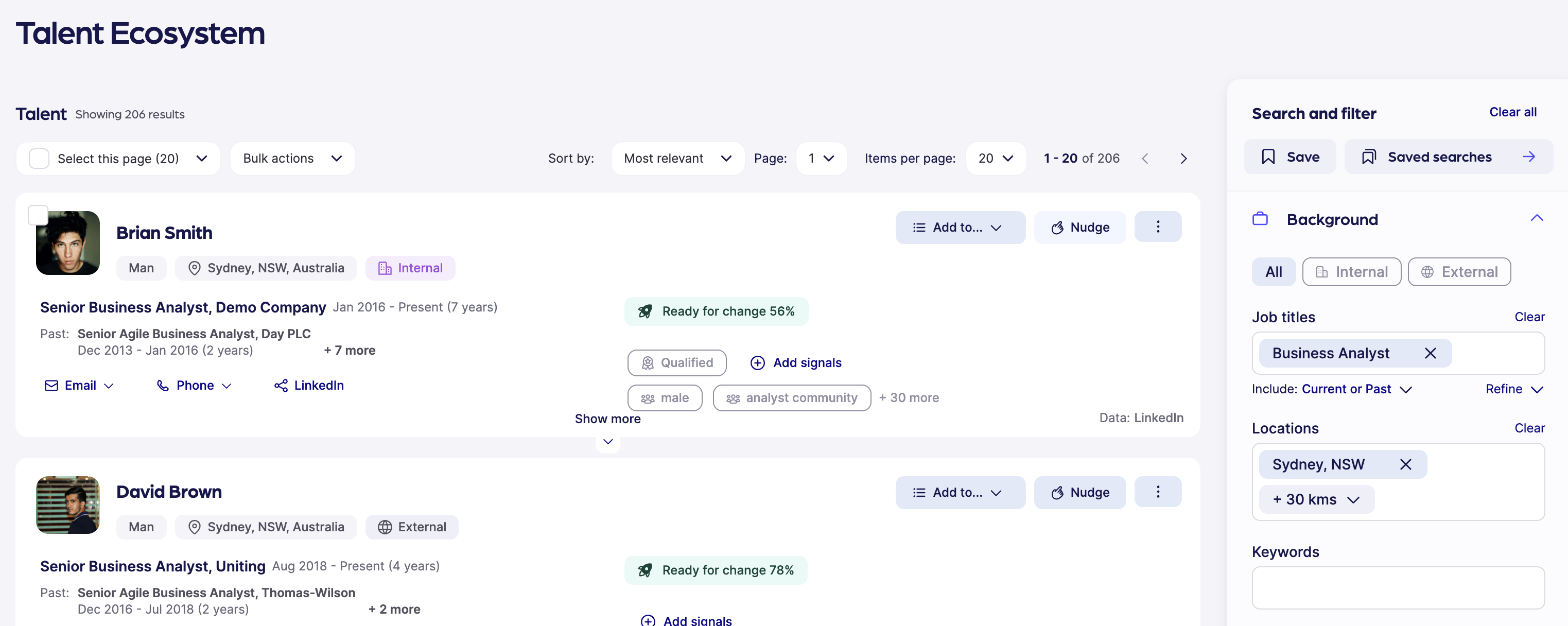
From the Talent Ecosystem, build your search using the sidebar search on the right.
Step two
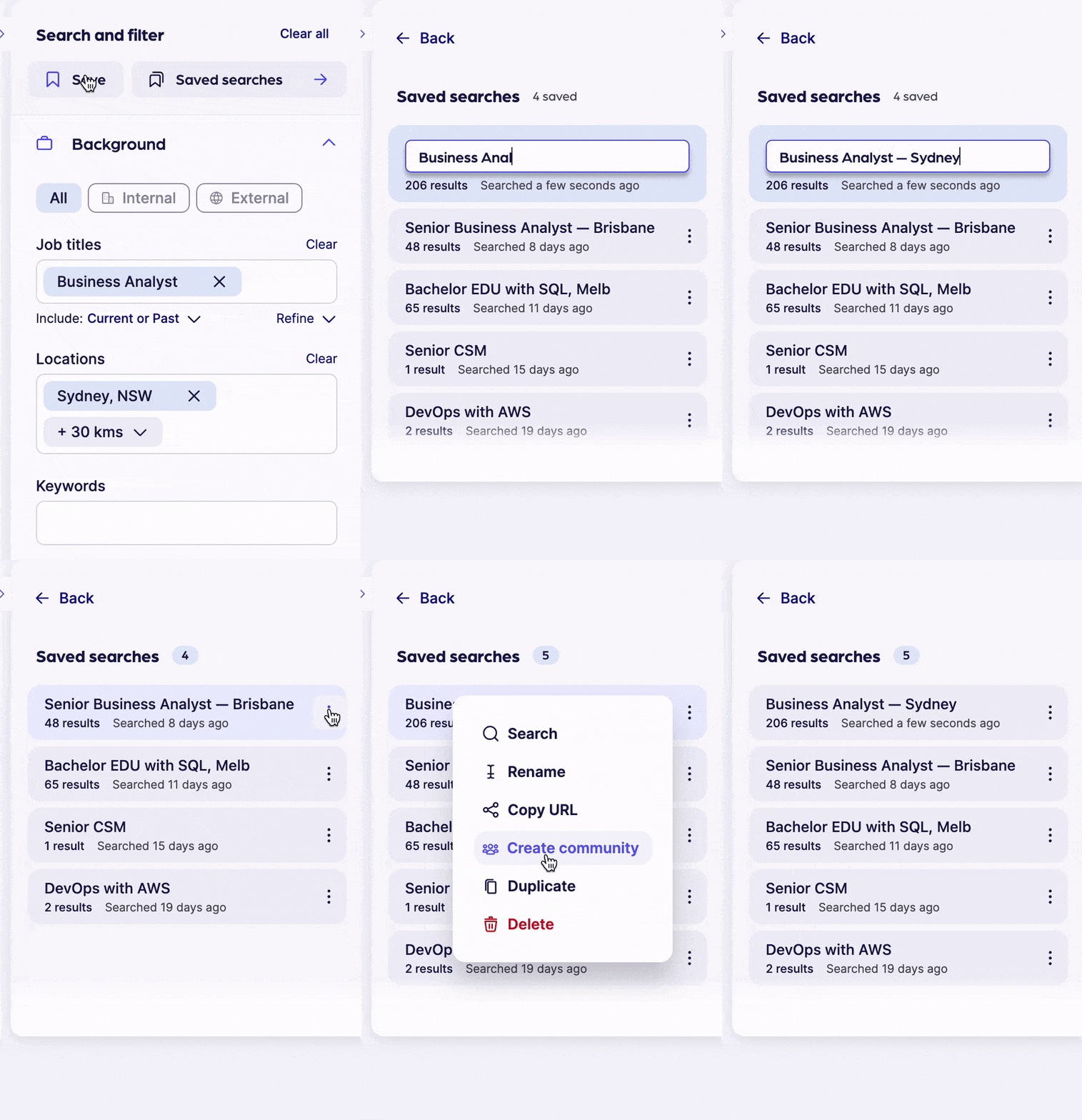
Once you’re happy with the inputs, click ‘Save’ and your search will be added to your 'Saved searches' list.
Step three
To create a talent community, click on the 3 dots option menu to the right-hand side of the saved search card.
You can also rename a saved search, share, or duplicate it.
Step four
View your newly created Talent Community by navigating to the Talent Management section of Reejig. Your community should be top of the list.
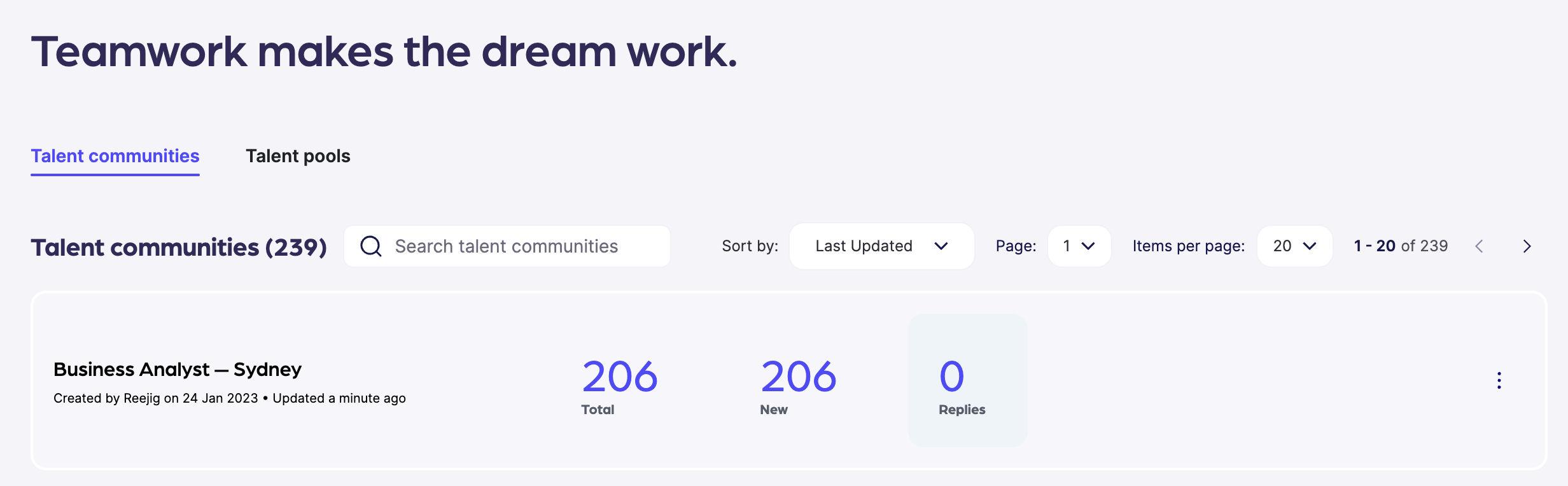
When you create a community, it is visible to anyone signed in to your organisation's Reejig account. Saved searches are private and only visible to you; the person who created them.
Editing a talent community
If you want to make changes in the Search Criteria, you can do so via the 'Editing Community' search an filter menu (see below)
Please note: Making changes to the search criteria will initiate a new search for profiles that align with the updated specifications. However, this action will not remove any previously added talent; instead, it will simply add new profiles that meet the revised criteria.
To refresh your talent community with new search criteria, you will need to start a new search from scratch within the Talent Ecosystem and create a new talent community based on your updated preferences.
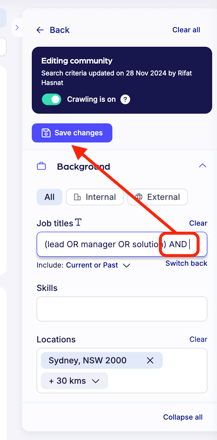
Note: In order for crawling to be enabled, you must have a location specified in the search criteria. By default, Crawling is always enable when a location is specified
To turn crawling off - you do so in the talent community by switch the toggle off.