![logo.png]](https://knowledge.reejig.com/hs-fs/hubfs/logo.png?height=40&name=logo.png)
1. Access your Opportunity Marketplace
- Navigate to the Opportunity Marketplace.
- In your dashboard, find the Opportunity that you would like to send your nudge to and click on the Nudge icon

2. Fill in the required Create Nudge fields
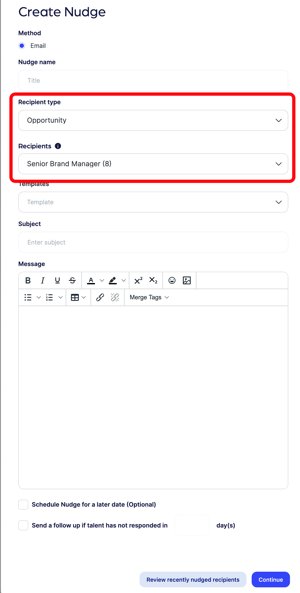
- A new window will appear with some required fields:
- Nudge name
- Recipient type - this will automatically populate with 'Opportunity' and will inform the next field
- Recipients - this will automatically select ALL candidates in that Opportunity. If you want send the Nudge to only a few candidates in that opportunity, refer to the Tip below
- Templates - select the Nudge template required
- Subject & Message- This will be pre-populated with the Subject line and Message copy that was used in the corresponding Nudge template. This information can be edited in-situ. Note: If you are reaching out to a candidate to invite them to apply for a job, you can include a job apply URL link into the body of your Nudge message by simply copying the job apply URL link from your ATS and pasting it into the body of your nudge message
Tip: To send a nudge to only a few candidates in an opportunity, you can change the 'Recipient Type' to 'Individual' and then manually select from the 'Recipients' field , which candidates you wish to nudge
OR
You can click into the Opportunity and manually select the candidates you want to nudge and then click 'Bulk Actions' and select 'Nudge'. The 'Create Nudge' window will open and you follow to finish creating your nudge.
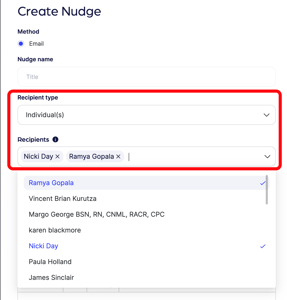
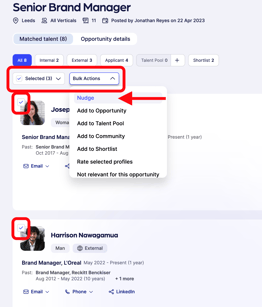
Note: Only recipients who have provided consent and have a valid email address will receive a Nudge
3.Schedule and Send Nudge
- There is an option to schedule the Nudge to be sent at a later date. To do this simply check the box next to ‘Schedule Nudge for a later date’ and fill in the scheduled date and time for the Nudge to be sent
- There is also an option to specify a number of days for a follow up Nudge to be sent if the talent hasn’t responded. Simply check the box next to ‘Send a follow up if talent has not responded in __ day(s)’ and type in the number of days
- There is also an option to view and remove recipients who have only recently been contacted via a Nudge. To do this,
- Click on ‘Review recently nudged recipients
- A new window will open providing a view of all recipients and Nudge messages recently sent
- If a recipient needs to be removed, simply click on the check box next to their name(s) and click ‘Remove Recipient’


- To Send the Nudge, click ‘Continue’
- A new message box will appear asking to confirm that the Nudge will be sent to all selected recipients
- Hit ‘Send Nudge’

4. Track Nudge Deliverability
- In the Nudge Engine Dashboard, key metrics will be visible for all Nudges that have been sent. This includes: sent, delivered, opened, clicked, replied
- Click on a metric to view more detail about it

